KeyLock Password Manager
Getting Started User Guide
Version: v26.02.6.3
Why KeyLock? The "Local-First" Advantage
If you’re trying to decide on a Password Manager, ask yourself a critical question: Do you truly trust your most sensitive information—banking, brokerage accounts, insurance records, Social Security numbers, and private notes—to a large private commercial password manager just waiting to be hacked?
Traditional password managers store millions of user vaults in centralized "honeypots." These companies are under constant, sophisticated attacks because a single breach offers a massive financial windfall for hackers.
KeyLock changes the game:
-
The Needle in the Haystack: By storing your data locally or in a public cloud of your choice (Google Drive, Dropbox, etc.), your vault is just one anonymous encrypted file among billions.
-
Zero Knowledge: Because we don’t hold your data, we cannot see your passwords—and neither can hackers.
-
True Sovereignty: Your data stays where you put it. To an outside observer, your database in a public cloud appears as an unrecognizable, encrypted file with contents unbeknownst to anyone.
System Requirements & Installation
Operating System Support
KeyLock is optimized for modern 64-bit environments to ensure maximum performance of the AES-256 encryption engine.
-
Windows 11 (64-bit)
-
Windows 10 (64-bit, version 1809 or later)
| Legacy systems such as Windows 7 or 8.1 are not officially supported. For your security, KeyLock should only be run on operating systems currently receiving active security patches from Microsoft. |
Hardware Requirements
The application is lightweight and designed to run efficiently in the background without impacting system performance.
-
Memory (RAM): 100 MB of available RAM (Minimum); 256 MB (Recommended).
-
Disk Space: Application:** ~50 MB for the initial installation.
-
Database: Variable. Individual database files are extremely small; even a vault with thousands of entries typically requires less than 5 MB of space.
-
Permissions & Access
To maintain the "Local-First" integrity of your data, the following permissions are required:
-
File System Access: KeyLock requires read/write permissions for its installation directory and whichever directory you choose for your database files.
-
Installer Privileges: The Standard Installer requires Administrative Privileges to create the necessary directories in
C:\Program Filesand to register the application with Windows. -
Standalone Permissions: The Standalone version can be run with Standard User permissions, provided it is placed in a directory where the user already has write access (e.g., a folder on the Desktop or a personal Documents folder). === Initial Download Options
Installation Options
-
Standard Installer: Recommended for most users. The installer handles all directory creation, system shortcuts, and registry entries for a smooth Windows experience.
-
Standalone Executable: Designed for the experienced user who demands total control over where the program resides. This version does not use a formal installation process; you simply place the executable in your preferred directory.
When running the installer, you will be prompted for:
-
Installation Path: The default is
C:\Program Files\KeyLock, but you can specify any local directory. -
Startup Option: Check this box to have KeyLock launch automatically when you sign into Windows.
-
Desktop Icon: Creates a KeyLock shortcut for quick access.
|
Windows Security Warning: During installation, you may see a "Windows Protected Your PC" or a Blue Screen SmartScreen warning. This is a standard security measure for independent software. Click "More Info" and then "Run Anyway" to proceed. |
Directory Architecture
-
Program Files: Stores the executable and necessary system assets.
-
App Data: Stores user configuration settings and local logs.
-
Default Database Folder: Typically created in your
Documents\KeyLock Databasesfolder. This folder is the default location where your databases, backups and exports are stored.
Database Setup
Creating Your First Database
Upon first launch, you will be prompted to create a new vault.
-
Select Location: You can accept the default local folder or choose a custom path.
-
Storage Choice: You can choose to store your database locally on your machine for maximum privacy, or in a Public Cloud directory (like your local Google Drive or Dropbox folder) for your own remote access.
-
Master Password: Choose a strong, memorable password.
|
Losing your Master Password is permanent.
|
Migration: Importing Data
If you are moving from a cloud-based manager, KeyLock makes the transition seamless.
The Migration Process
-
Export: Log into your current password manager and export your vault as a
.csvfile. -
Import: In KeyLock, go to
File > Import > CSV. -
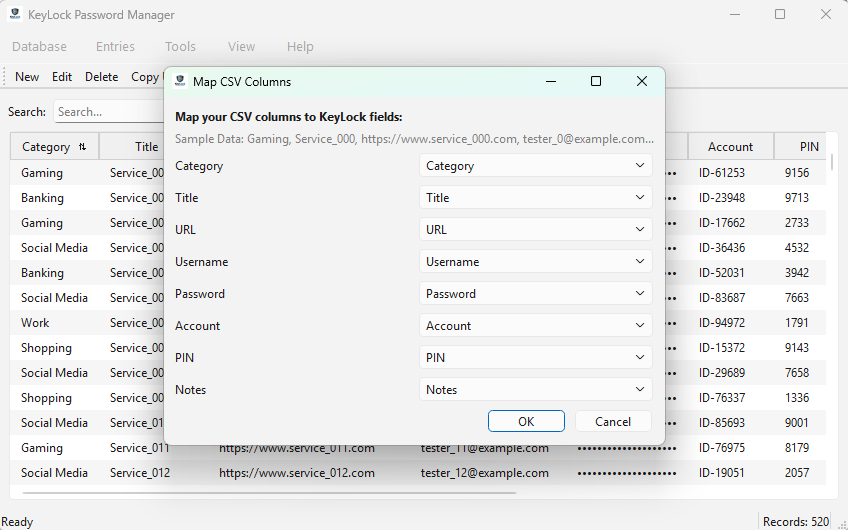
Auto-Mapping: KeyLock features an Auto-Mapping engine that recognizes headers from major password managers. It will attempt to automatically match your existing "Username," "Password," and "URL" fields to the KeyLock database structure.
-
Secure Cleanup: Once the import is successful, permanently delete the plain-text CSV file from your computer.
Uninstallation
If you need to remove KeyLock, use the Windows Add or Remove Programs utility.
| Uninstalling the program does not delete your encrypted database files. This ensures your data remains safe and available should you choose to reinstall in the future. |
User Guide
Introduction and Overview
The KeyLock Password Manager is a professional-grade security tool designed to give you absolute control over your digital identity. Unlike other cloud-based managers that store your data on their servers, KeyLock is a local-first application where both the program and the encrypted database remain entirely under your jurisdiction.
The Importance of a Password Manager
In the modern digital landscape, using unique, complex passwords for every account is the only defense against "credential stuffing" attacks. A password manager eliminates the need to memorize dozens of complex passwords, allowing you to use high-entropy passwords that are impossible to guess.
Multiple Databases
KeyLock supports the creation of an unlimited number of SQLite databases. Although you can use a single database and incorporate Business, Personal, Notes and any other Category you create and use the Search box to filter in on a single Category. For users who prefer separate "Business" credentials from "Personal" credentials you may still create separate databases. Each database can have its own unique Master Password.
The KeyLock Benefit: Sovereign Control
Decentralized Storage:
-
You choose exactly where your database lives—whether on a local hard drive or your favorite Public cloud provider such as Google Drive or Dropbox.
Multi-Platform:
-
By storing your database in public cloud services like Dropbox, Google Drive, or OneDrive, you can install KeyLock on multiple Windows machines such as your Desktop, Laptop or Work Computer and access your database vault from anywhere.
Zero-Knowledge Security:
-
The application never transmits your master password or unencrypted data over the internet. Encryption and decryption happen solely on your local machine.
-
Because KeyLock uses PBKDF2 key derivation and AES-authenticated Fernet encryption, your Master Password is the only key to the vault. If lost, the data is mathematically impossible to recover. We recommend using the "Password Hint" feature or keeping a physical copy of your master password in a safe or fireproof box.
-
KeyLock adheres to a strict Zero-Knowledge policy. Because the application does not have a "backdoor" and does not store your master password in any form, there is no recovery process. This is a deliberate security feature: if a recovery method existed for you, it would also exist for a hacker. You are the sole custodian of your data.
|
Losing your Master Password is permanent.
|
Security Architecture and Encryption
-
KeyLock is built on a "Hardened Security" model to ensure that even if your database file is stolen, the contents remain inaccessible.
Encryption Standards
-
Fernet (AES-128/256):
-
KeyLock utilizes the cryptography.fernet library for symmetric encryption, which provides "authenticated encryption" that prevents tampering.
-
-
Key Derivation:
-
Your master password is never stored. Instead, KeyLock uses a PBKDF2 (Password-Based Key Derivation Function 2) with a unique 16-byte random Salt to derive the encryption key.
-
-
The Database Structure:
-
The database is a SQLite file (.db) containing a vault table with the following columns: Catagory, Title, URL, Username, Password, Account, PIN & Notes.
-
salt: The unique random value used to derive your key.
-
data: The encrypted JSON blob containing your passwords and recycle bin.
-
hint: An optional, unencrypted text string to help you remember your password.
-
Interface Navigation
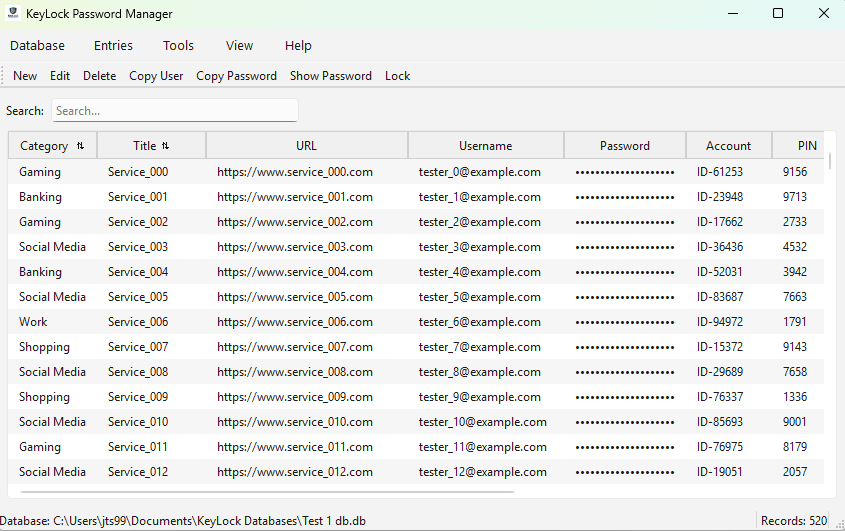
The interface is designed for high-efficiency security management, divided into four primary control zones: the Menu Bar, the Ribbon Toolbar, Status Bar and the Table view.
Detailed Menu Functionality
Database Menu
-
New Database (Ctrl+N): Initiates a secure wizard to create a fresh Database. This includes a mandatory security warning, master password setup, and optional hint creation.
-
Open Database (Ctrl+O): Allows you to navigate to and select an existing .db file.
-
Recent Databases: Displays a list of up to 5 previously used databases for rapid switching.
-
Save Database (Ctrl+S): Does a quick save of the open database.
-
Save Database As (Ctrl+Shift+S): Brings up a Explorer screen allowing you to save the current database utilizing a new database name. This also utilizes the same password from the current database. If needed, You can change the password with the menu Database > Change Master Password.
-
Close Database (Ctrl+W): Safely locks the current database and clears all data from the application’s memory and returns the app to a locked state.
-
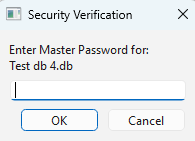
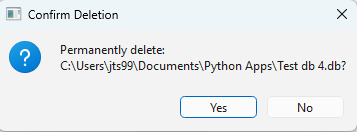
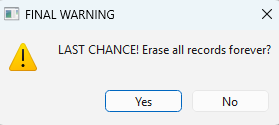
Delete Database: Brings up Explorer view allowing you to delete a database. To delete, you must enter the Master Password, confirm you want to delete the database and one final warning. Use caution, this database and its contents are deleted forever.
-
Lock Database (Ctrl+L): Locks the current database and displays the Password entry screen.
-
Import, Export, & Data Merging: Support for CSV files to allow easy migration from other password managers or to create unencrypted backups (use with caution).
-
KeyLock allows for seamless migration while maintaining strict data integrity.
-
-
Import Logic: Supports CSV files.
-
Automatic Data Mapping: The app attempts to match columns like "Login" to "Username" and "Pass" to "Password" automatically.
-
Data Merging: When importing into an existing vault, you can choose to "Merge" (add new items) or "Overwrite".
-
Duplicate Checking: The system flags entries with identical Titles and Usernames to prevent clutter.
-
-
Export Logic: Allows you to export your data to an unencrypted CSV file for storing on USB drives or other storage. Warning: Exported files are not encrypted and should be stored securely or deleted immediately after use.
-
Searchable HTML (Mobile Ready)
-
Standard CSV
-
Plain Text (.txt)
-
|
Use Caution with Export functionality !!
|
-
Backup: Brings up an Explorer window pre populating the backup filename as: database-name_backup_date_time. Backup files are stored as encrypted .enc files. It is highly recommended that you backup often. You will need to know your Master Password to Restore from backup.
-
Restore From Backup: Brings up an Explorer window showing encrypted (.enc) backup files available to restore. You will need to know your Master Password to Restore from backup.
-
Exit Application (Ctrl+Q): Exits the KeyLock Password Manager application.
Entries Menu
-
New Record (Ctrl+Shift+N): Opens a window to store a new account, including Title, Username, Password, URL, and Notes. Double-Clicking the "URL" field in Table or Record view will open your default browser to that site. The Notes section can store up to 256 characters.
-
Edit Record (Ctrl+E): Pressing this button opens the Entry Form for editing an existing record for such fields as Title, Username, Password, URL, and Notes. Double-Clicking the "URL" field in Table or Record view will open your default browser to that site. The Notes section can store up to 256 characters.
-
You can also generate a secure hardened password using the Generate Password button.
-
-
Delete Record (Del): Deletes the current record selected in table view and places it into the KeyLock Recycle Bin.
-
Copy User: When pressed will copy the User field information from the selected or open record into the Clip-Board memory. It will remain in memory based on the adjustable setting in the Tools > Settings > Enable clipboard auto-clear. Usually recommended to set this for 15 seconds. For security best practices the clipboard will be cleared.
-
After pressing Copy User, User info is in Clipboard, go to site that you are logging into put your cursor in the User field and press Ctrl-V to paste your User.
-
-
Copy Password: When pressed will copy the Password from the selected or open record into the Clip-Board memory. It will remain in memory based on the adjustable setting in the Tools > Settings > Enable clipboard auto-clear. Usually recommended to set this for 15 seconds. For security best practices the clipboard will be cleared.
-
After pressing Copy Password, the Password info is in Clipboard, go to site that you are logging into put your cursor in the Password field and press Ctrl-V to paste your password.
-
-
Show Password: Passwords are masked however you can press Show Password and the highlighted record in table view or the open record view will reveal the password for that record.
-
Undo Last Change (Ctrl+Z): Will undo your last change.
Tools Menu
-
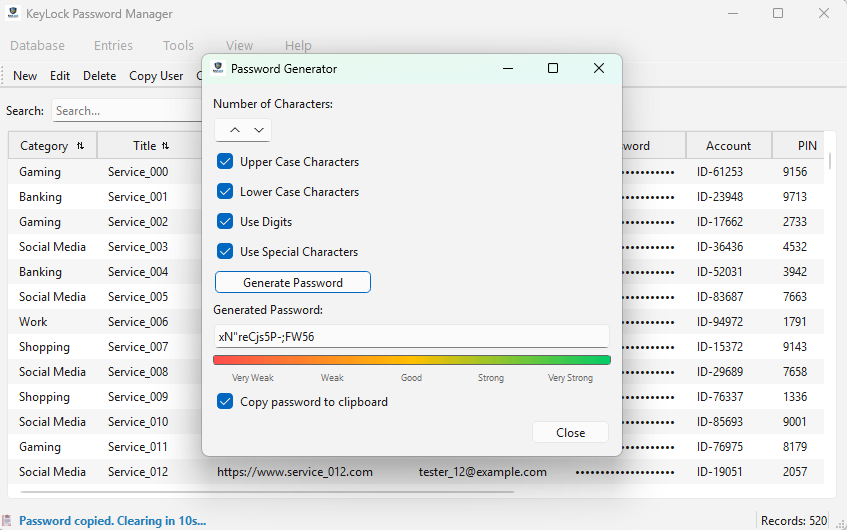
The Password Generator (Ctrl+G): A robust utility to create high-security passwords or simply type and create your own password.
-
Length Control: Field to specify the Password length from (default 16+) 8 to 128 characters.
-
Character Sets: Toggle switches for Uppercase (A-Z), Lowercase (a-z), Numbers (0-9), and Special Symbols (!@#$).
-
Entropy Calculation: Displays a real-time "Strength" score as you adjust settings.
-
-
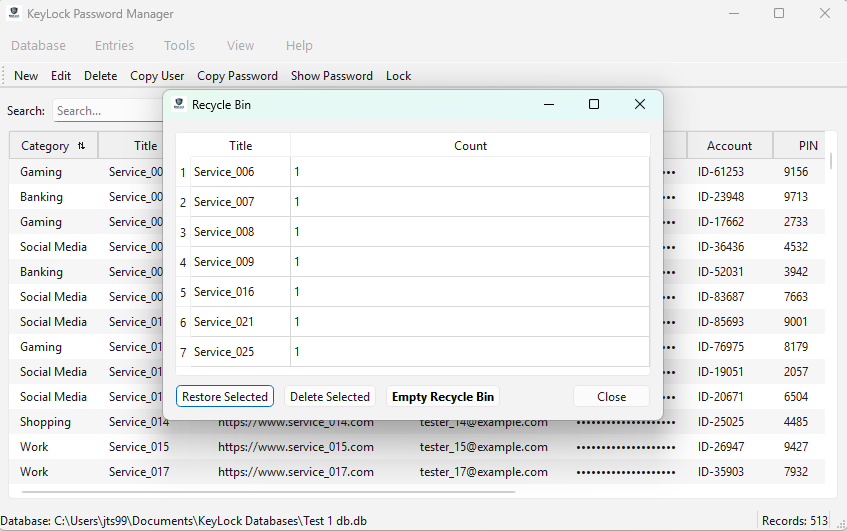
Recycle Bin (Ctrl+R): When you delete a record, it is stored in the Recycle Bin providing you an opportunity to Delete Permanently or to Restore.
-
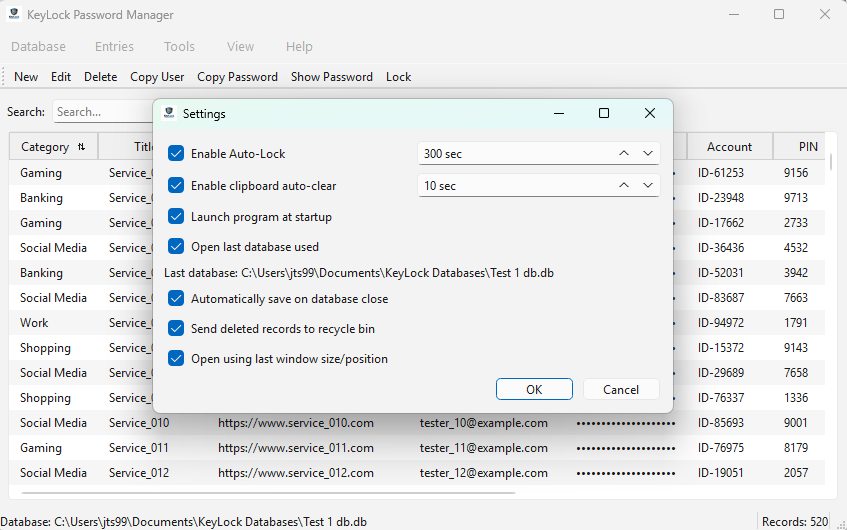
Settings: Includes preferences, such as database auto-lock and clipboard auto-clear timers, meeting security best practices. Setting to Launch KeyLock on computer startup, Open last database used, auto-save on close and remembering the KeyLock screen position and window size.
Help Menu
-
User Manual (F1): An online version of the KeyLock Password Manager User Manual
-
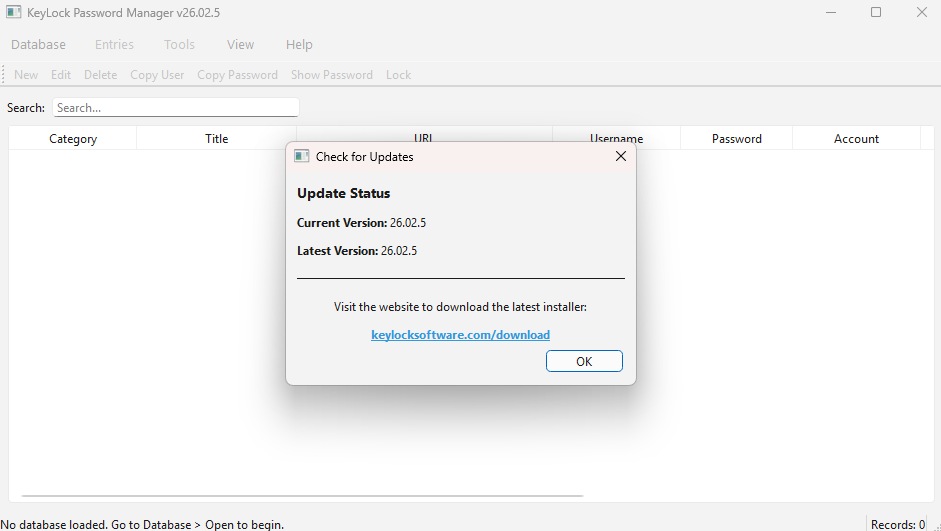
Check for Updates (Ctrl+U): This will display your current version and the latest version of the KeyLock Password Manager application available for download.
-
Keyboard Shortcuts
-
New Database (Ctrl+N)
-
Open Database (Ctrl+O)
-
Save Database (Ctrl+S)
-
Save Database As (Ctrl+Shift+S)
-
Close Database (Ctrl+W)
-
New Record (Ctrl+Shift+N)
-
Edit Record (Ctrl+E)
-
Delete Record (Del)
-
Undo Last Change (Ctrl+Z):
-
Search (Ctrl+F)
-
Lock Database (Ctrl+L)
-
Passwprd Generator (Ctrl+G)
-
Open Recycle Bin (Ctrl+R)
-
Exit Application (Ctrl+Q)
-
Edit Selected Entry (Enter)
-
Donate
-
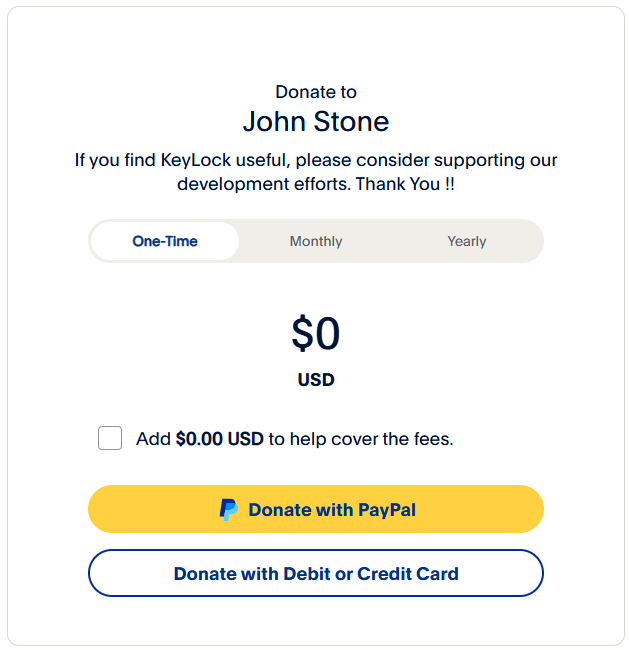
Thank you for using KeyLock, if you are finding this program useful, please consider supporting its development by donating any amount that you are comfortable with. We appreciate your generosity…
-
Currently we offer the ability to take donations through Venmo and PayPal.
-
Venmo Donation: On your mobile device go to your Venmo application and search for @JohnStone996
-
PayPal Donation: Are easily done through this web-link:
-
About
-
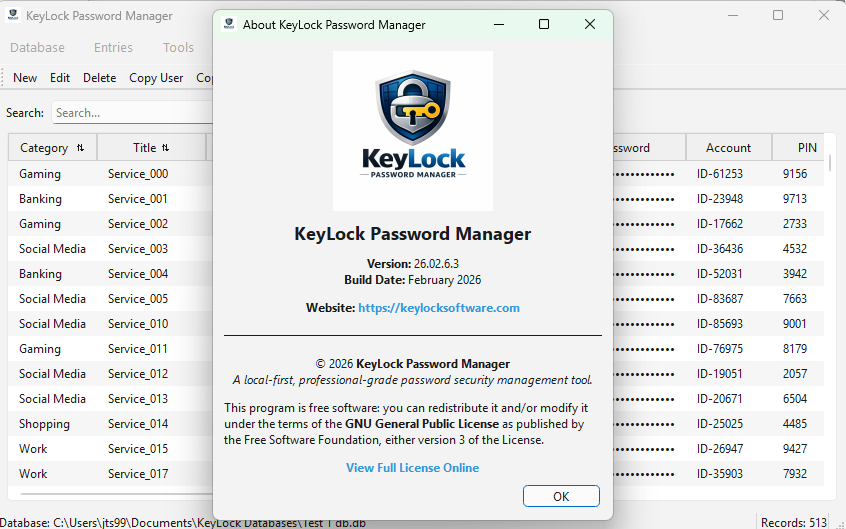
Shows the current Keylock Password Manager Version Number, Build Date, Copyright and GNU General Public License https://www.gnu.org/licenses/gpl-3.0.txt as published by the Free Software Foundation, either version 3 of the License, or (at your option) any later version.
The Ribbon Toolbar & Search Functionality
-
Located directly below the menus, quick-action buttons are available to manage the currently selected record.
-
New (Ctrl+Shift+N): Pressing this button opens the Entry Form for entering a new record including Title, Username, Password, URL, and Notes. Double-Clicking the "URL" field in Table or Record view will open your default browser to that site. The Notes section can store up to 256 characters.
-
You can also generate a secure hardened password using the Generate Password button.
-
Edit (Ctrl+E): Pressing this button opens the Entry Form for editing an existing record for such fields as Title, Username, Password, URL, and Notes. Double-Clicking the "URL" field in Table or Record view will open your default browser to that site. The Notes section can store up to 256 characters.
-
You can also generate a secure hardened password using the Generate Password button.
-
Delete Record (Del): Deletes the current record selected in table view and places it into the KeyLock Recycle Bin.
-
Copy User: When pressed will copy the User field information from the selected or open record into the Clip-Board memory. It will remain in memory based on the adjustable setting in the Tools > Settings > Enable clipboard auto-clear. Usually recommended to set this for 15 seconds. For security best practices the clipboard will be cleared.
-
After pressing Copy User, User info is in Clipboard, go to site that you are logging into put your cursor in the User field and press Ctrl-V to paste your User.
-
Copy Password: When pressed will copy the Password from the selected or open record into the Clip-Board memory. It will remain in memory based on the adjustable setting in the Tools > Settings > Enable clipboard auto-clear. Usually recommended to set this for 15 seconds. For security best practices the clipboard will be cleared.
-
After pressing Copy Password, the Password info is in Clipboard, go to site that you are logging into put your cursor in the Password field and press Ctrl-V to paste your password.
-
Show Password: Passwords are masked however you can press Show Password and the highlighted record in table view or the open record view will reveal the password for that record.
-
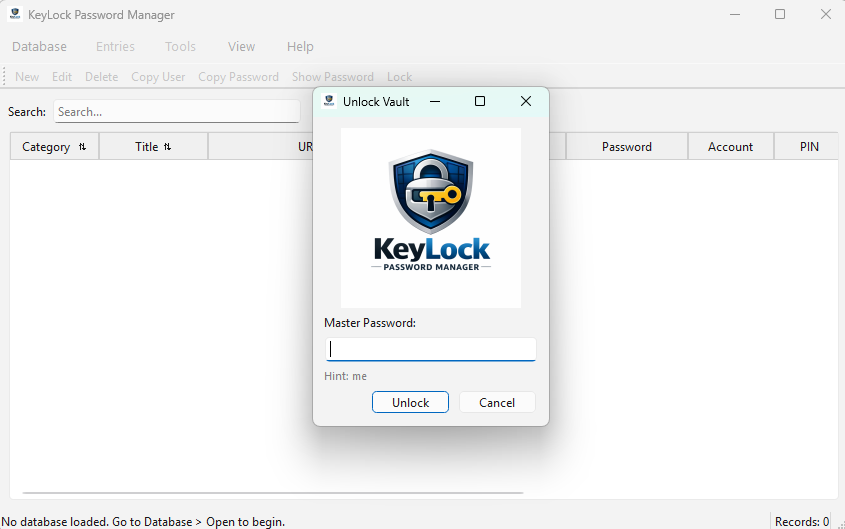
Lock (Ctrl+L): A prominent button that immediately clears the memory and secures the vault. It also displays the Login screen for the Database Master Password as soon as Lock is pressed.
-
-
Search Bar (Ctrl+F): A real-time filter located on the right of the ribbon. As you type, the table instantly hides non-matching entries based on the Title, Username, or URL fields.
The Lower Message Bar (Status Bar)
-
The left footer of the KeyLock application provides critical situational awareness:
-
Database Path: Displays the file and data path currently in use Database: Path_Database-Name.db
-
Database Save: Displays a message: Database Saved!
-
Database Close: Displays a message: Database Closed. Then displays: No database loaded. Go to Database > Open to begin.
-
Backup Database: If backup is successful, the message bar displays: Backup Saved with backup filename as: database-name_backup_date_time.enc
-
Restore Database: If restore is successful, the message bar displays: Restore successful database-name_backup_date_time.enc
-
Caps Lock Warning: A monitor that flashes red if CAPS LOCK IS ON, assisting in preventing login errors.
-
Clipboard Auto-Clear: When using the Copy User or Copy Password functionality, the program copies these to the clipboard memory so that you have time to paste them in your login website. The lower message bar Displays: Copied! Clearing in 15s… then displays: Clipboard cleared for security.
-
Entry Count: Shows the total number of records in your vault.
-
Legal & Compliance
License Information
KeyLock Password Manager is Free Software: you can redistribute it and/or modify it under the terms of the GNU General Public License https://www.gnu.org/licenses/gpl-3.0.txt as published by the Free Software Foundation, either version 3 of the License, or (at your option) any later version.
Disclaimer of Warranty
THERE IS NO WARRANTY FOR THE PROGRAM, TO THE EXTENT PERMITTED BY APPLICABLE LAW. EXCEPT WHEN OTHERWISE STATED IN WRITING THE COPYRIGHT HOLDERS AND/OR OTHER PARTIES PROVIDE THE PROGRAM “AS IS” WITHOUT WARRANTY OF ANY KIND, EITHER EXPRESSED OR IMPLIED, INCLUDING, BUT NOT LIMITED TO, THE IMPLIED WARRANTIES OF MERCHANTABILITY AND FITNESS FOR A PARTICULAR PURPOSE. THE ENTIRE RISK AS TO THE QUALITY AND PERFORMANCE OF THE PROGRAM IS WITH YOU. SHOULD THE PROGRAM PROVE DEFECTIVE, YOU ASSUME THE COST OF ALL NECESSARY SERVICING, REPAIR OR CORRECTION.
Limitation of Liability
IN NO EVENT UNLESS REQUIRED BY APPLICABLE LAW OR AGREED TO IN WRITING WILL ANY COPYRIGHT HOLDER, OR ANY OTHER PARTY WHO MODIFIES AND/OR CONVEYS THE PROGRAM AS PERMITTED ABOVE, BE LIABLE TO YOU FOR DAMAGES, INCLUDING ANY GENERAL, SPECIAL, INCIDENTAL OR CONSEQUENTIAL DAMAGES ARISING OUT OF THE USE OR INABILITY TO USE THE PROGRAM (INCLUDING BUT NOT LIMITED TO LOSS OF DATA OR DATA BEING RENDERED INACCURATE OR LOSSES SUSTAINED BY YOU OR THIRD PARTIES OR A FAILURE OF THE PROGRAM TO OPERATE WITH ANY OTHER PROGRAMS), EVEN IF SUCH HOLDER OR OTHER PARTY HAS BEEN ADVISED OF THE POSSIBILITY OF SUCH DAMAGES.
Third-Party Libraries
-
KeyLock utilizes the following open-source libraries. We acknowledge and thank the developers of these projects:
-
PySide6: Licensed under LGPLv3.
-
Cryptography (Fernet): Licensed under Apache License 2.0 and BSD 3-Clause.
-
SQLite: Public Domain.
-